Quickstart Guide
Get up and running with Mucker in under two minutes with zero certificates.
1. Instant 60-Second Demo (No Setup Required)
Want to see Mucker in action immediately before adding dependencies to your project? We provide a fully automated one-line runner as well as a 1-click cloud Dev Container requiring zero local tools:
Option A: Local One-Line Runner (Automatic Emulator & Browser Launch)
If you have an Android device or emulator running locally on macOS or Linux:
git clone https://github.com/yongjhih/mucker.git
cd mucker
npm run demo
# or: ./scripts/quickstart.sh
What happens automatically:
- Detects your connected Android device/emulator (or automatically launches a local AVD if none is active).
- Compiles and installs the demo Android app (
:app:installDebug). - Establishes port forwarding (
adb forward tcp:8080 tcp:8080). - Launches
MainActivityon the Android screen. - Opens
http://localhost:8080in your default desktop browser.
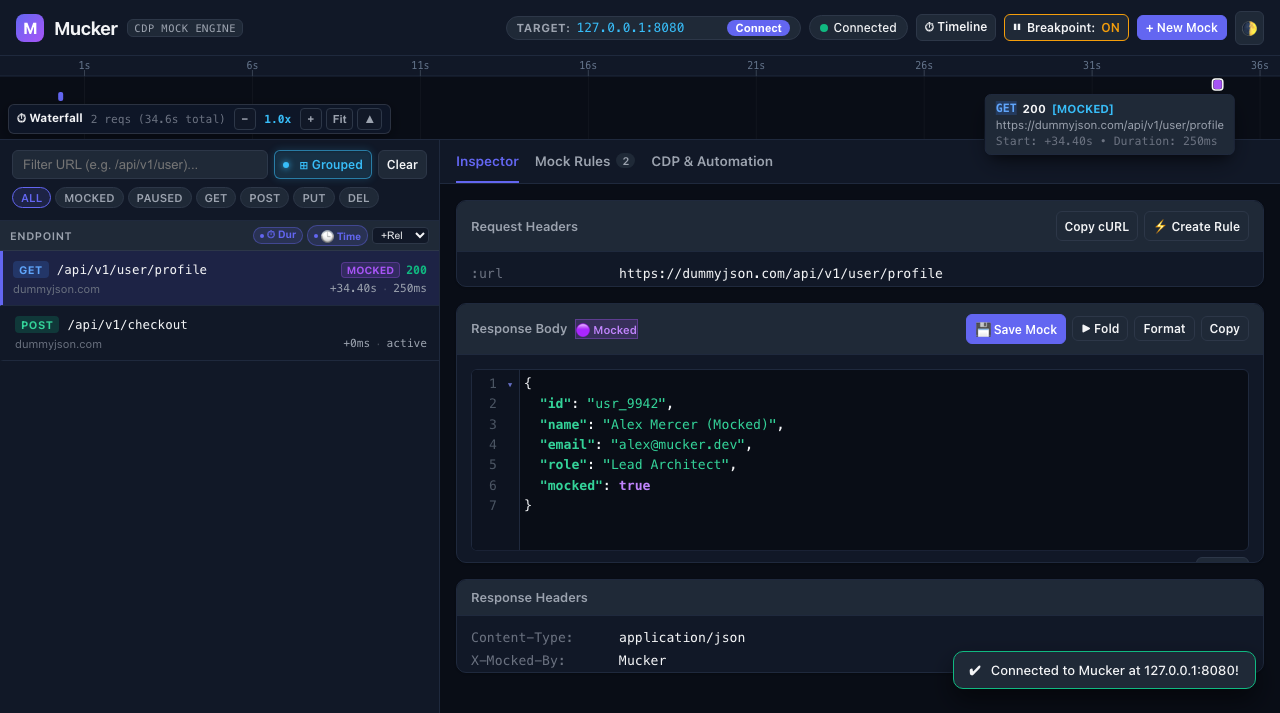
[!TIP] Try this in the Demo:
- Tap “1. GET /api/v1/user/profile” on the Android screen.
- Watch the request appear in real time on the desktop dashboard timeline with bi-directional hover highlighting.
- Click the request, directly edit the JSON response in the CodeMirror editor (no button required), and press
⌘SorCtrl+Enter.- Tap the button again on the Android phone — your mocked JSON payload is served immediately!
Option B: Zero-Install Cloud Dev Container (GitHub Codespaces)
Don’t have Android Studio, JDK 17, or the Android SDK installed on your workstation? You can experience Mucker with 100% cloud execution in your browser:

- Pre-configured Stack: Ubuntu 24.04 LTS, OpenJDK 17, Android SDK 34 (
build-tools 34.0.0,platform 34), Node.js 22 LTS. - Automated Setup: Container automatically executes
./gradlew :app:assembleDebug, sets up dependencies, and maps port 8080. - VS Code Dev Containers: You can also open the project in VS Code and select Reopen in Container.
Option C: QA & CI/CD Chaos Automation with Playwright / Puppeteer
Test Android network resilience and recovery without root or proxy certificates:
# Inject random HTTP 500 & 504 Timeout faults over CDP
npm run chaos:playwright
# or
npm run chaos:puppeteer
For full details, see the Automation & Chaos Engineering Guide.
2. Integrating Mucker into Your Own Android App
Step 1: Add Dependencies via JitPack
Add the JitPack repository in your root settings.gradle.kts (or build.gradle.kts):
dependencyResolutionManagement {
    repositories {
        google()
        mavenCentral()
        maven { url = uri("https://jitpack.io") }
    }
}
In your application module’s build.gradle.kts, choose between the all-in-one bundle, headless interceptor, or in-app dashboard:
dependencies {
    // OkHttp (host app dependency)
    implementation("com.squareup.okhttp3:okhttp:4.12.0")

    // Option A: Full Bundle (Headless Interceptor + In-App WebView Dashboard)
    debugImplementation("com.github.yongjhih.mucker:mucker:1.0.0")

    // Option B: Headless Interceptor (Zero UI, pure OkHttp mock engine & CDP server)
    // debugImplementation("com.github.yongjhih.mucker:mucker-interceptor:1.0.0")

    // Option C: In-App Web Dashboard (MuckerActivity, Notification Drawer, and Web Assets)
    // debugImplementation("com.github.yongjhih.mucker:mucker-dashboard:1.0.0")

    // Release: Clean zero-overhead stubs
    releaseImplementation("com.github.yongjhih.mucker:mucker-noop:1.0.0")
}
Step 2: Initialize in Application
In your Application class, call Mucker.install(this):
package com.example.myapp

import android.app.Application
import io.github.mucker.Mucker
import io.github.mucker.MuckerConfig

class MyApp : Application() {
    override fun onCreate() {
        super.onCreate()

        // Initialize Mucker in debug builds
        Mucker.install(
            context = this,
            config = MuckerConfig(
                port = 8080,               // Default server port
                showNotification = true,   // Display persistent status notification
                autoStart = true           // Start embedded micro-server on app launch
            )
        )
    }
}
Step 3: Attach Interceptor to OkHttpClient
Add Mucker.interceptor to your OkHttpClient.Builder():
import io.github.mucker.Mucker
import okhttp3.OkHttpClient

val okHttpClient = OkHttpClient.Builder()
    // Attach Mucker Interceptor
    .addInterceptor(Mucker.interceptor)
    .build()
If you also use Chucker or HttpLoggingInterceptor, we recommend placing Mucker.interceptor first or right before logging:
val okHttpClient = OkHttpClient.Builder()
    .addInterceptor(Mucker.interceptor) // Mucker handles or short-circuits requests
    .addInterceptor(ChuckerInterceptor.Builder(context).build())
    .build()
Step 4: Open the Mucker Dashboard
Method A: Directly on Phone (In-App WebView)
- Run your app in debug mode.
- Swipe down the Android notification drawer and tap the “Mucker Active” notification.
- The in-app Mucker Dashboard will open immediately!
Method B: Computer Browser via Wi-Fi
If your computer and Android phone are on the same Wi-Fi network:
- Note the phone IP shown on the notification or app status card (e.g.,
192.168.1.50). - Open your desktop browser and navigate to:
http://192.168.1.50:8080
Method C: Computer Browser via USB / Emulator (Recommended)
Install the Mucker CLI or run ADB:
# Using Mucker CLI
npx mucker forward
npx mucker open

# Or using adb directly
adb forward tcp:8080 tcp:8080
open http://localhost:8080
Step 5: Live Mocking & Zero-Barrier In-Place Editing
Method A: Direct In-Place Editing on Any Captured Request (Zero Clicks to Edit)
- In the Web or In-App Dashboard, click any request in the traffic list.
- The Response Body is directly editable in CodeMirror with syntax highlighting and code folding.
- Edit the JSON response directly and press
⌘S(Mac) orCtrl+Enter(Windows/Linux) — or click⚡ Mock (⌘S). - The mock rule is created and active immediately!
Method B: Creating a Custom Rule from Scratch
- Click ”+ New Mock” in the top navigation.
- Enter URL pattern:
.*/api/v1/user.*. - Choose Status Code:
200 OK. - Enter response body:
{ "id": "usr_99", "name": "Jane Developer", "role": "Admin" } - Click “Save Rule”.
Method C: From the Command Line
mucker rules add "/api/v1/user" --status 200 --body '{"name":"Jane Developer"}'
sequenceDiagram
    autonumber
    actor Dev as Developer
    participant App as Android App (OkHttp)
    participant Mucker as Mucker Engine
    Dev->>Mucker: mucker rules add "/api/v1/user" --status 200
    App->>Mucker: GET https://api.sample.com/api/v1/user
    Note over Mucker: Pattern Match Found!
    Mucker-->>App: Mocked 200 OK (Zero CA Certs)
Every subsequent OkHttp call matching this URL will instantly return the mock JSON with zero network roundtrip and zero certificate issues!